09. Exercise: Display the SleepQuality List
L7 14 ViewHolders SC
Now it's your turn to complete this exercise yourself.
In this step you will implement a your own ViewHolder! You'll take the Adapter you finished in the last section and add a new ViewHolder to display a list of SleepQuality.
When you've completed this exercise you'll have a working RecyclerView that displays a styled list like this:
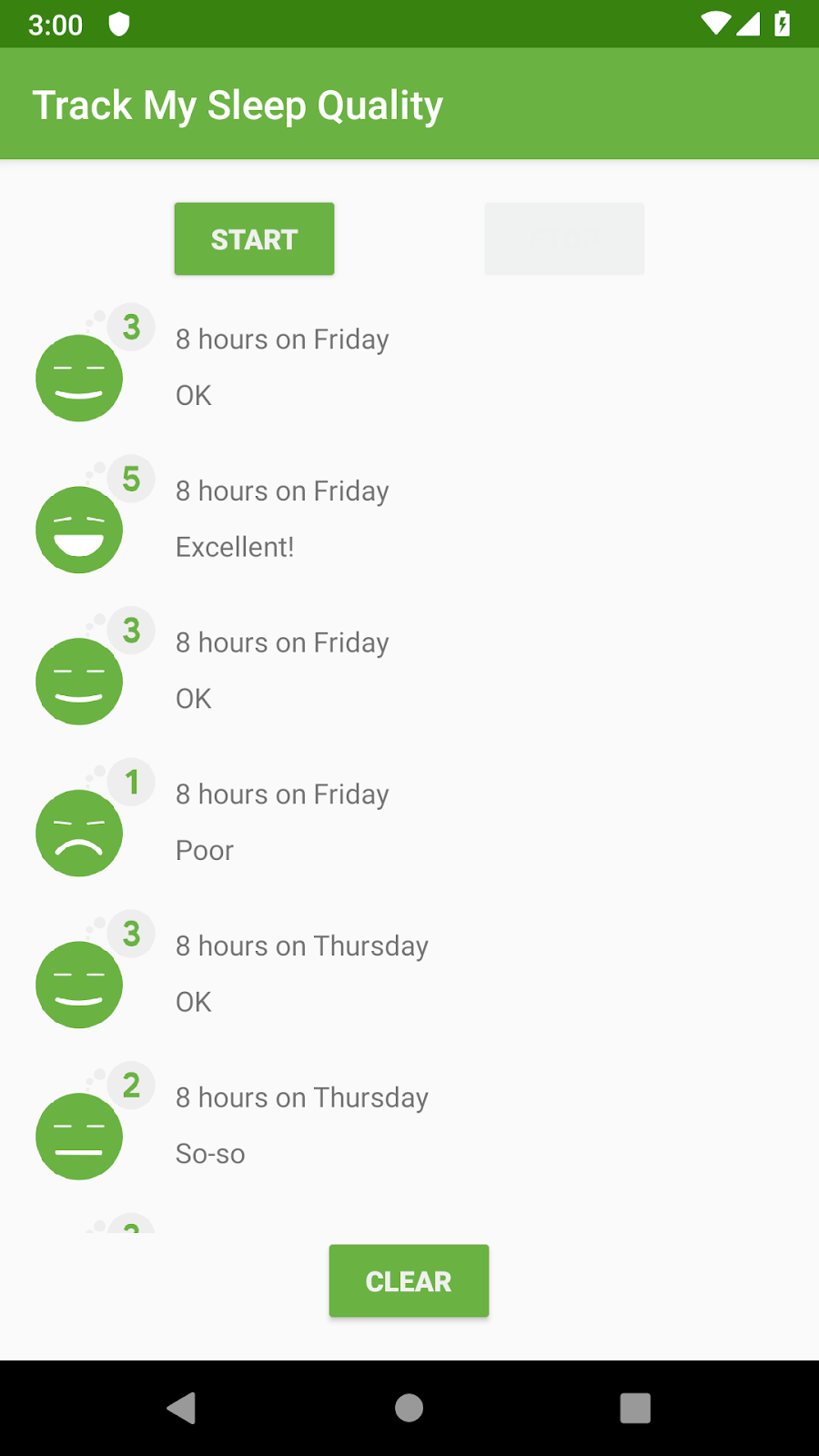
- In
list_item_sleep_night, add views to theConstraintLayoutto build the design below.
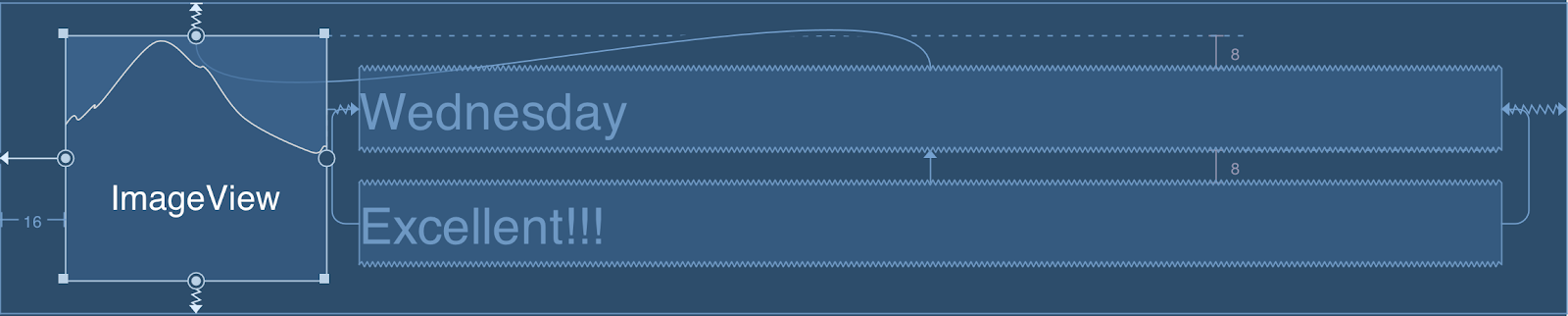
Tip: You can set preview text by using the field marked with  .
.
- Add Add an
ImageViewand set itsidtoquality_image:
 <ImageView
        android:id="@+id/quality_image"
        android:layout_width="@dimen/icon_size"
        android:layout_height="60dp"
        android:layout_marginStart="16dp"
        android:layout_marginTop="8dp"
        android:layout_marginBottom="8dp"
        app:layout_constraintBottom_toBottomOf="parent"
        app:layout_constraintStart_toStartOf="parent"
        app:layout_constraintTop_toTopOf="parent"
tools:srcCompat="@drawable/ic_sleep_5" />- Add a TextView to the right of quality_image and set its id to sleep_length:
   <TextView
        android:id="@+id/quality_string"
        android:layout_width="0dp"
        android:layout_height="20dp"
        android:layout_marginTop="8dp"
        app:layout_constraintEnd_toEndOf="@+id/sleep_length"
        app:layout_constraintStart_toStartOf="@+id/sleep_length"
        app:layout_constraintTop_toBottomOf="@+id/sleep_length"
tools:text="Excellent!!!" />- Add a TextView to the right of quality_image and set its id to sleep_length:
   <TextView
        android:id="@+id/sleep_length"
        android:layout_width="0dp"
        android:layout_height="20dp"
        android:layout_marginStart="8dp"
        android:layout_marginTop="8dp"
        android:layout_marginEnd="16dp"
        app:layout_constraintEnd_toEndOf="parent"
        app:layout_constraintStart_toEndOf="@+id/quality_image"
        app:layout_constraintTop_toTopOf="@+id/quality_image"
        tools:text="Wednesday" />
In SleepNightAdapter
Inside the SleepNightAdapter class, create a
ViewHolderclass that extendsRecyclerView.ViewHolder.
Use
findViewByIdto find views.Inside the
ViewHolder, usefindViewById()to create propertiessleepLength,quality, andqualityImage.Make sure
sleepLengthandqualityareTextViews. Also ensurequalityImageis anImageView:
val sleepLength: TextView = itemView.findViewById(R.id.sleep_length)
val quality: TextView = itemView.findViewById(R.id.quality_string)
val qualityImage: ImageView = itemView.findViewById(R.id.quality_image)
Update SleepNightAdapter to use ViewHolder:
Go to the declaration of
SleepNightAdapterand change the type parameter ofRecyclerView.AdaptertoSleepNightAdapter.ViewHolder
class SleepNightAdapter: RecyclerView.Adapter<SleepNightAdapter.ViewHolder>()NOTE: Your code won't compile after making this change because it doesn’t implement all of the required overrides. We’ll fix that in the next steps.
- Change onCreateViewHolder()’s return type to
ViewHolder, and inflatelist_item_sleep_nightinstead oftext_item_view:
 override fun onCreateViewHolder(parent: ViewGroup, viewType: Int): ViewHolder {
     val layoutInflater = LayoutInflater.from(parent.context)
     val view = layoutInflater.inflate(R.layout.text_item_view, parent, false)

    return ViewHolder(view)
}
Don’t forget to remove as TextView from the call to .inflate, or your code will crash!
Update onBindViewHolder.
Change
onBindViewHolderto takeholder: ViewHolderas a parameter and update the views inViewHolderto display icon resources instead of colors.
 override fun onBindViewHolder(holder: ViewHolder, position: Int) {
       val item = data[position]
       val res = holder.itemView.context.resources
       holder.sleepLength.text = convertDurationToFormatted(item.startTimeMilli, item.endTimeMilli, res)
       holder.quality.text = convertNumericQualityToString(item.sleepQuality, res)

       holder.qualityImage.setImageResource(when (item.sleepQuality) {
             0 -> R.drawable.ic_sleep_0
             1 -> R.drawable.ic_sleep_1
             2 -> R.drawable.ic_sleep_2
             3 -> R.drawable.ic_sleep_3
             4 -> R.drawable.ic_sleep_4
             5 -> R.drawable.ic_sleep_5
            else -> R.drawable.ic_sleep_active
      })
}- Run the app and you should see the styled list!
If you want to start at this step, you can download this exercise from: Step.04-Exercise-Display-SleepQuality-List.
You will find plenty of //TODO comments to help you complete this exercise, and if you get stuck, go back and watch the video again.
Once you’re done, you can check your solution against the solution we’ve provided here: Step.04-Solution-Display-Sleep-Quality-List, or using this git diff.
Task Description:
Complete these tasks to add a ViewHolder that displays a list of sleep quality entries with images.
Task Feedback:
Great job! You've implemented a ViewHolder for RecyclerView. In the next steps you'll look at ways to improve this code with encapsulation.